


Donastar Default Donation Images v1 — From 1 to 100 Million, a Growth Story in 41 Scenes

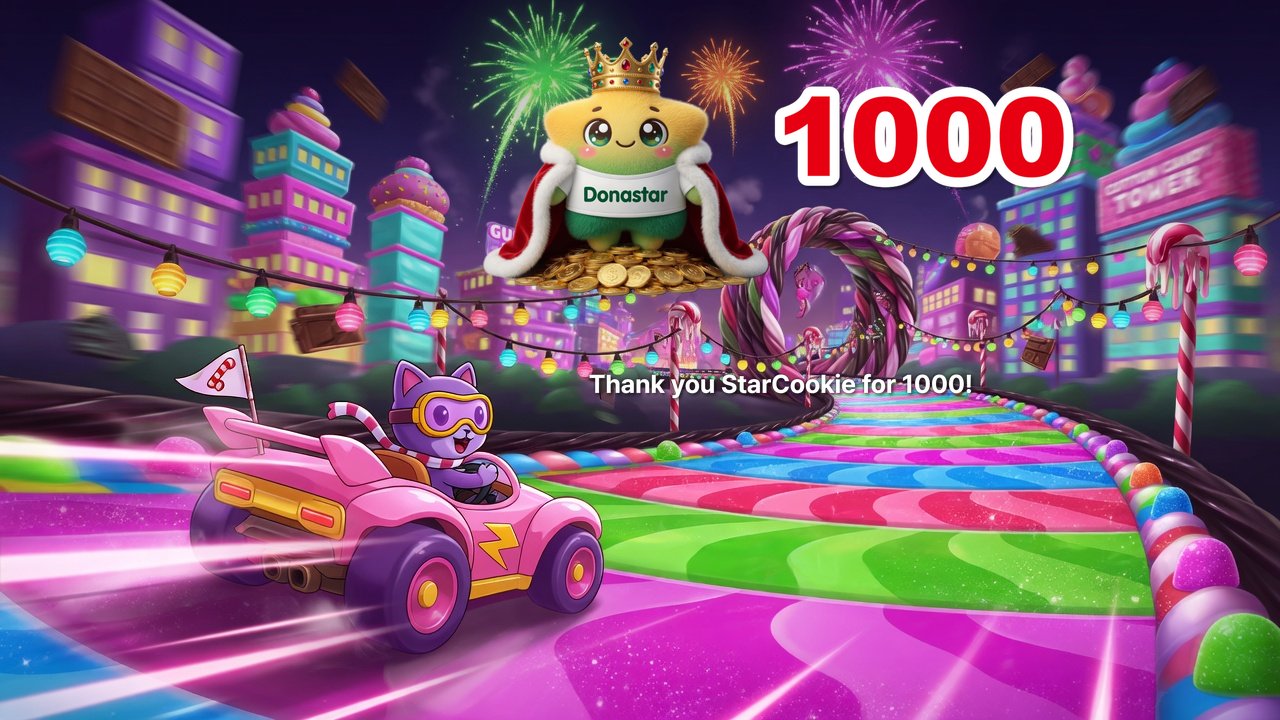
When you first turn on donation alerts, the first thing that slows you down is images. Finding a picture that fits each amount, resizing it and uploading them one by one eats into your stream prep. That is why Donastar donation alerts come with default donation images that appear automatically, even when a rule has no image of its own.
Those default donation images are now on version 1. The star of the show is the Donastar star. It tears up at a donation of 1, and as donations grow it puts on a crown, rides a rocket and finally plants a flag in outer space. It is a growth story in 41 scenes, a different one for every amount from 1 to 100 million.
Streaming tools: streamer.donastar.tv
At a glance
| Item | Details |
|---|---|
| Dedicated images | 41 (1 to 100,000,000) |
| Base image | 1 (other amounts) |
| Auto-applied to | Rules without an image |
| Platforms | 12 platforms + Donastar |
| Format | 1920×1080, transparent |
Which image shows up? — An exact match gets its own scene, anything else gets a number
The rule is simple.
- If the donation count exactly matches one of the 41 amounts — that amount’s dedicated image appears. 1,000 brings the star in a crown, 10,000 brings the star on a rocket.
- Any other count — the count is stamped in big red numbers on the base image, which has no number of its own. For 1,500 you get the base image + “1500”, not the 1000 image.
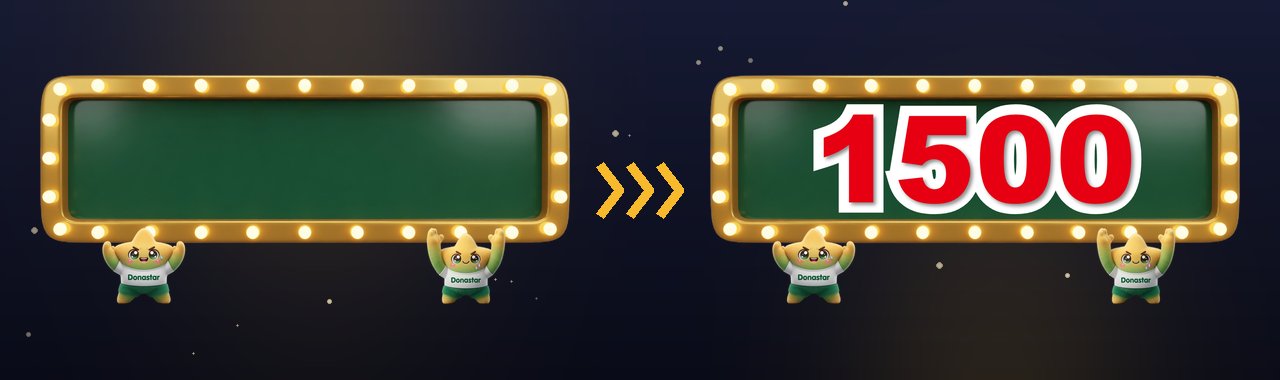
The base image shows two stars straining to hold up a golden marquee. The number uses the same bold red lettering with a white outline as the 41 images, so it looks like part of the same set when the two alternate, and it automatically shrinks when there are many digits.
The count is taken in each platform’s own unit.
- YouTube — Super Chats count in your account’s currency: a $20 Super Chat → the 20 image
- Twitch — 100 Bits → the 100 image
- Donastar — 100 Dona → the 100 image
- SOOP — 10 Star Balloons → the 10 image
- Twitch — 150 Bits → the base image + “150”
Round amounts that people send all the time, like 1, 10, 100 and 1,000, each have their own scene, so there is nothing to prepare no matter which platform you stream on.
The growth story in 41 scenes
1 – 90: Small gestures, big feelings
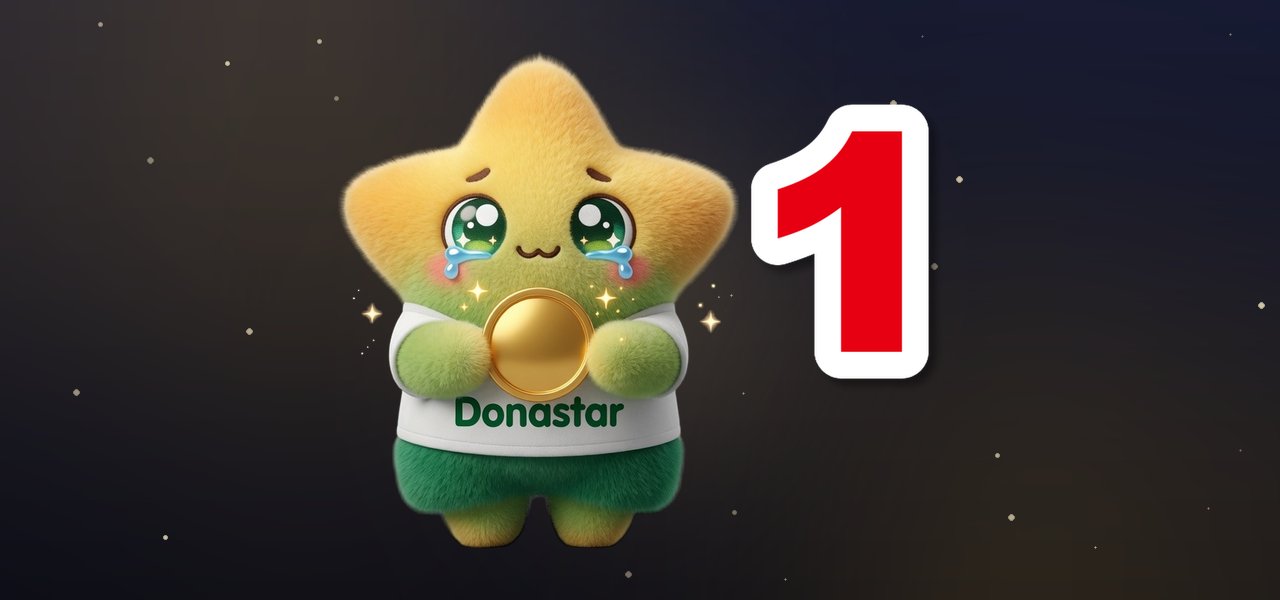
Every story starts at 1. Receiving its very first donation, the star hugs a single gold coin with tears in its eyes.
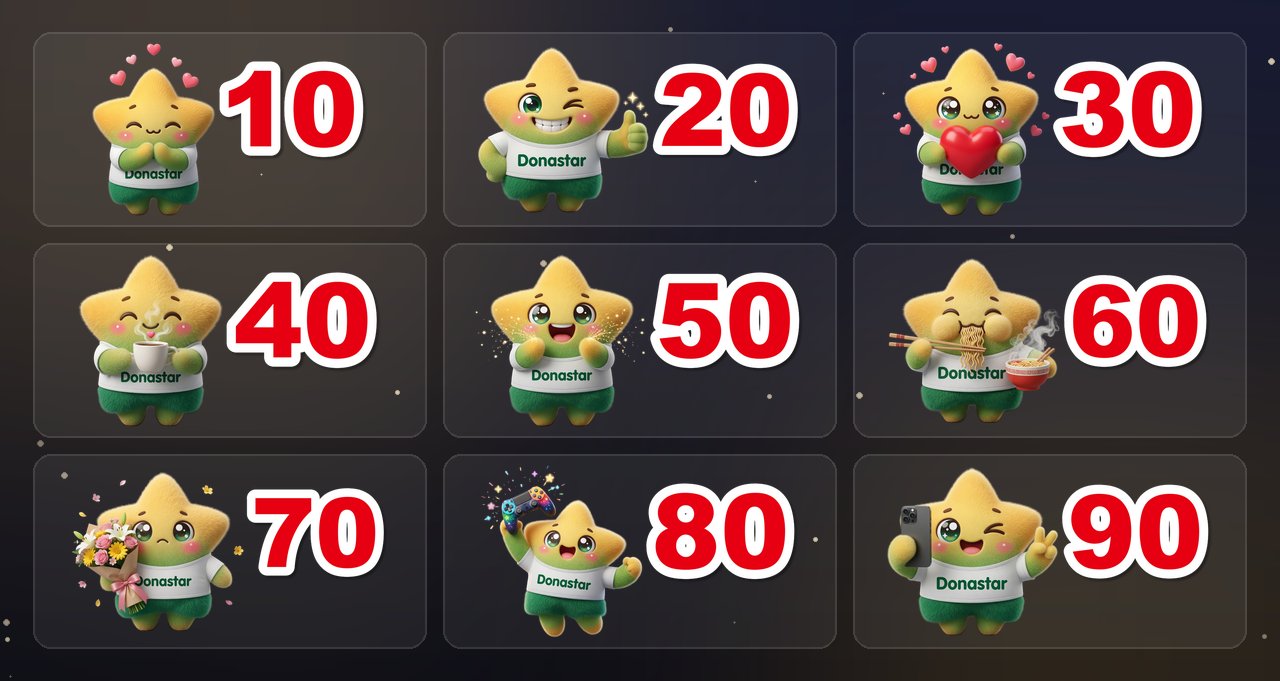
- 10 — Hands clasped, hearts popping
- 20 — A wink and a thumbs-up
- 30 — Hugging a giant heart
- 40 — A relaxing cup of coffee
- 50 — Clapping in a shower of sparkles
- 60 — Slurping a bowl of ramen
- 70 — Shyly holding out a bouquet
- 80 — Cheering with a game controller held high
- 90 — Selfie time, peace sign!
100 – 900: Let the party begin
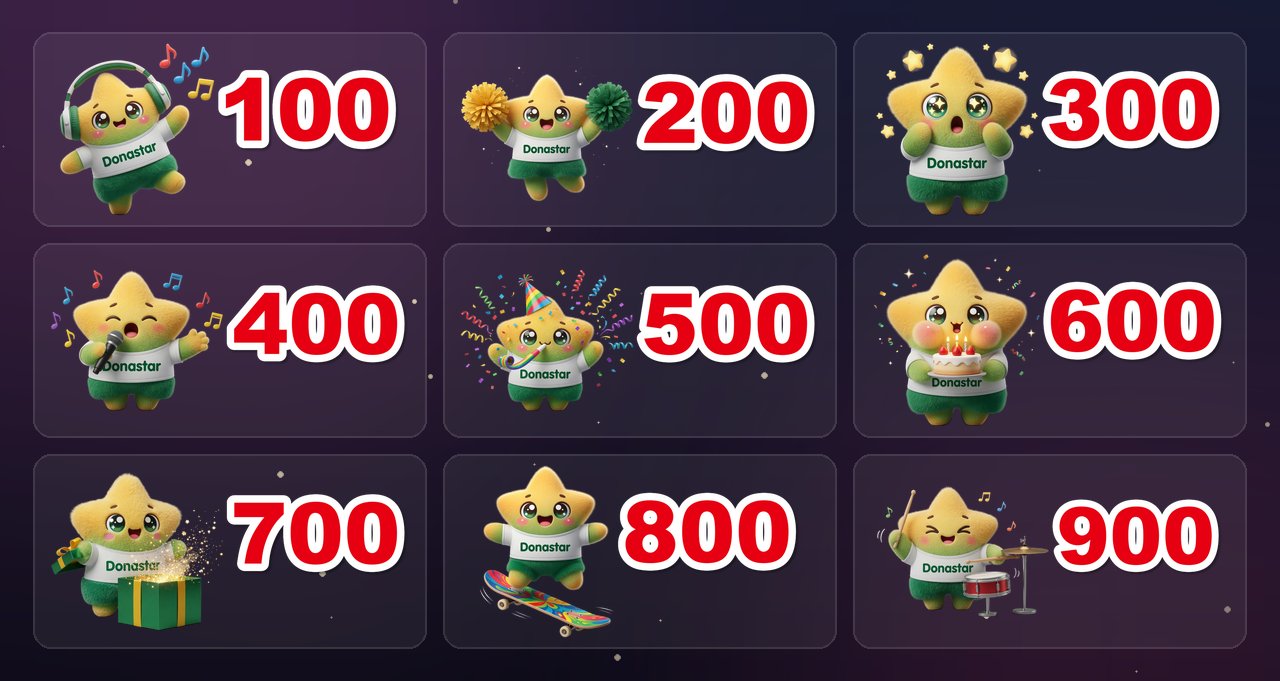
- 100 — Dancing with headphones on
- 200 — Cheerleading with pom-poms
- 300 — Starry-eyed and amazed
- 400 — Belting out a song on the mic
- 500 — Party hat on, party started
- 600 — A strawberry cake with lit candles
- 700 — Opening a sparkling gift box
- 800 — Jumping on a skateboard
- 900 — Rocking out on the drums
1,000 – 9,000: Champion time
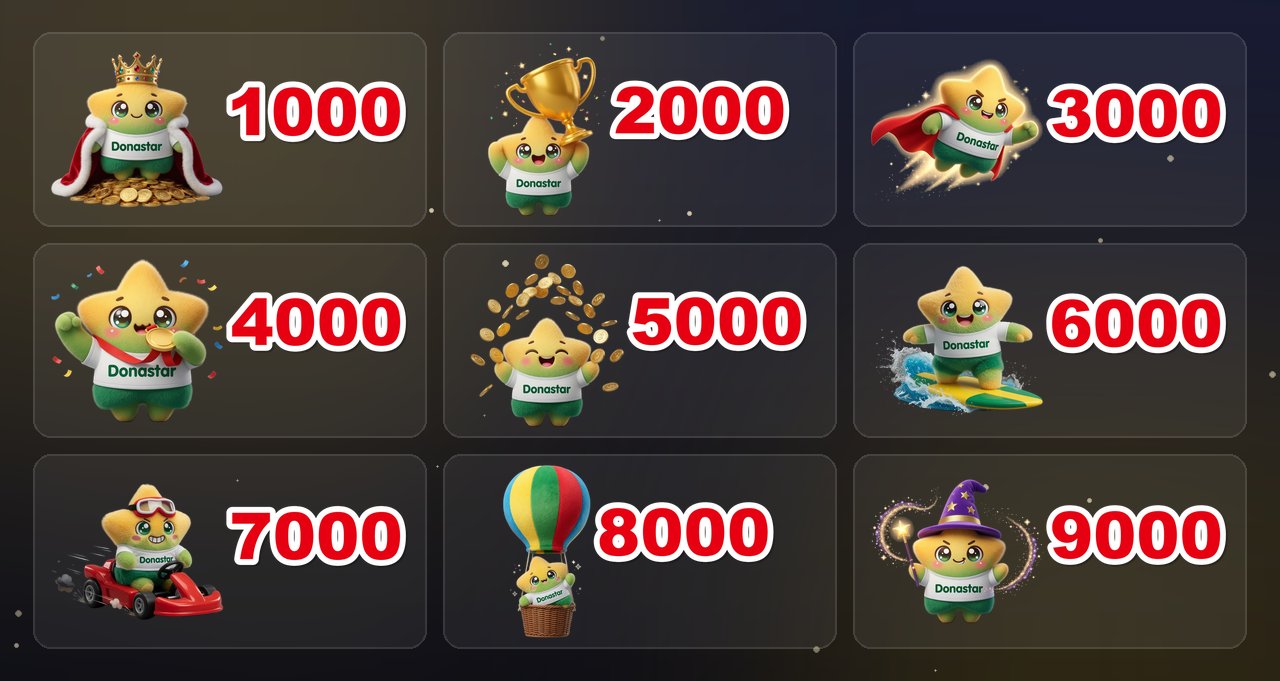
- 1,000 — A king in crown and cape atop a pile of gold coins
- 2,000 — Raising a golden trophy
- 3,000 — A superhero soaring with cape flying
- 4,000 — Biting a gold medal
- 5,000 — A rain of gold coins
- 6,000 — Surfing the waves
- 7,000 — Kart racing in goggles
- 8,000 — Floating away in a rainbow hot-air balloon
- 9,000 — A wizard with a magic wand
10,000 – 90,000: Legendary adventures
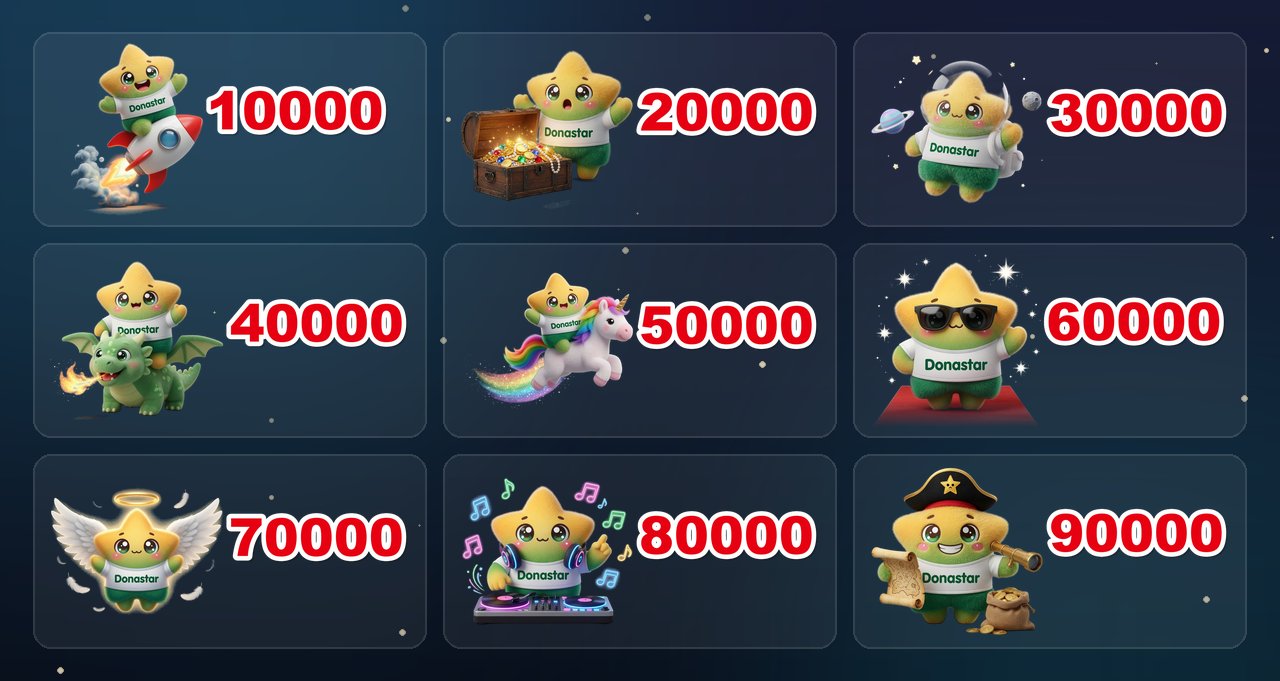
- 10,000 — Blast-off on a rocket!
- 20,000 — Discovering a treasure chest full of jewels
- 30,000 — Floating in space in a helmet
- 40,000 — Riding a fire-breathing baby dragon
- 50,000 — Galloping on a rainbow-tailed unicorn
- 60,000 — Sunglasses on, walking the red carpet
- 70,000 — An angel with wings and a halo
- 80,000 — A DJ at the neon turntables
- 90,000 — A pirate captain with a treasure map and spyglass
100,000 – 100,000,000: All the way to conquering space
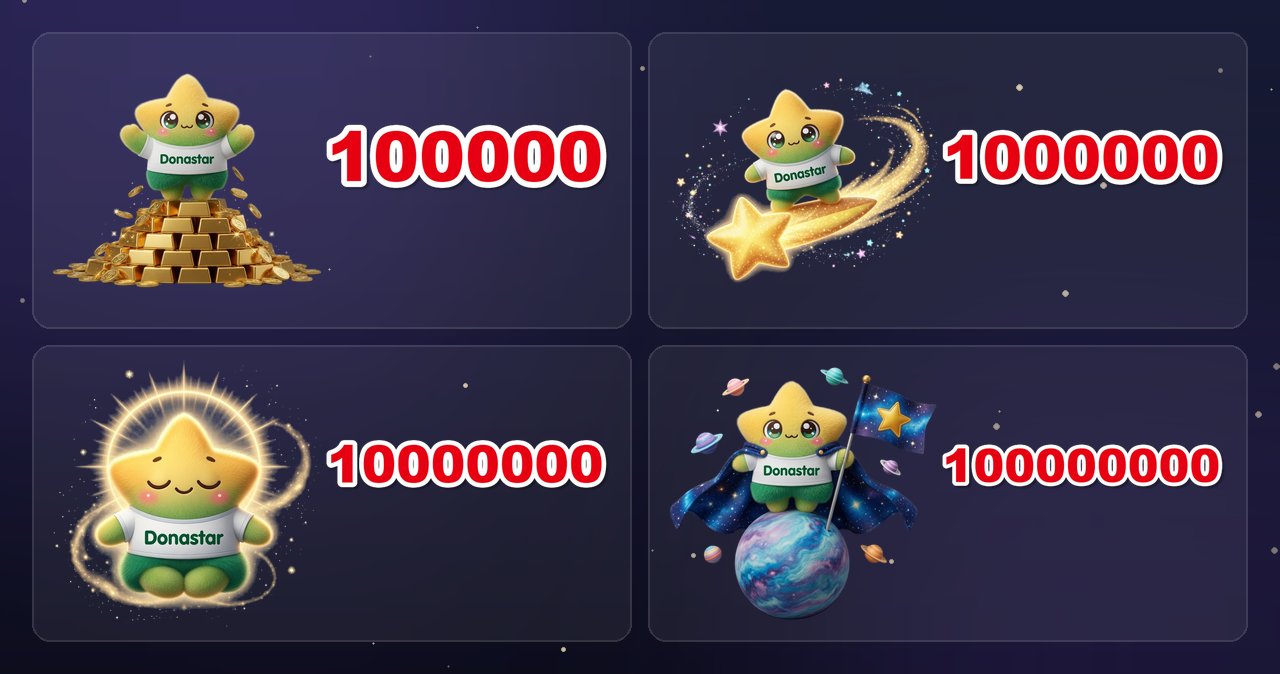
- 100,000 — Standing tall atop a pyramid of gold bars
- 1,000,000 — Surfing through space on a shooting star
- 10,000,000 — Enlightenment in a golden halo
- 100,000,000 — A space conqueror in a galaxy cape, planting a flag on a planet
10,000,000 and 100,000,000 are scenes waiting for that someday. A single Dona donation tops out at 1,000,000 Dona, so these two can only appear with units that count in big numbers, such as Korean won.
How to use it — just leave the image empty
- Log in at streamer.donastar.tv, create an alert setup on the Donation Alerts page, and paste its URL into OBS via Add Source → Browser. (Recommended size 800×600)
- Create an alert rule with the Add button and set the donation count range for each platform. Leave the image empty. Rules without an image get the default donation images automatically.
- Check it with the Test Alert button. With a rule expanded, the test uses that rule’s minimum amount; with none expanded, it sends a test YouTube donation of 10,000.
Put your own images, GIFs or videos only on special amounts and leave the other rules empty — the default donation images fill the gaps. Clear a rule’s image (✕) at any time to go back to the default, or pick another preset with the rule’s Default Image/Audio button.
A few defaults worth knowing:
- Alert text — Shown below the image. New rules come pre-filled with “Thank you {donor} for {amount}!”, and you can change it freely.
- Display time — 13 seconds by default, adjustable from 1 to 999 seconds.
- Sound and voice — Off by default. Upload a sound effect, or switch the alert voice to Default alert voice (free) or TTS alert voice (uses credits).
An alert only fires when the donation count falls inside a rule’s range. If the default image doesn’t show up, first check that you have a rule covering that amount.
FAQ
Which platforms’ donations does it work with?
Every platform that Donation Alerts supports. Donations from YouTube, CHZZK, SOOP, Twitch, TikTok, Kick and the rest of the 12 platforms, as well as Donastar, all get their image from the count in that platform’s own unit.
I received 1,500 and got a number instead of the 1000 image.
That’s expected. Dedicated images appear only when the count matches one of the 41 amounts exactly; any other count shows the base image with the exact number you received.
Can I turn the default image off?
Rules with an empty image always use the default donation images. Add your own image or video and it replaces them.
I still see the old images instead of the new ones.
The images were replaced at the same address, so OBS may still be holding on to the old ones. Double-click the source with the URL in OBS, check the ‘Refresh browser when scene becomes active’ checkbox, and click the ‘Refresh cache of current page’ button.
Are they used anywhere besides Donation Alerts?
In the Wallpaper widget, too, amounts without a rule image are shown with the same default donation images.
Wrapping up
Whether it’s 1 or 100,000,000, no viewer’s support should slip by unnoticed on screen. Donastar Default Donation Images v1 gives every donation on your stream a reaction, told through the star’s growth story.
If choosing images has been holding up your stream prep, just set up your rules today. The star will take care of the rest.
Get started with Donation Alerts → streamer.donastar.tv
Related reading: Alert Guide · Introducing Donastar Streaming Tools — The All-in-One Live Streaming Assistant
Contact: hello@donastar.tv
Share Article
If this article helped you, please share it with others!
